Math in Nuke, the series: Merge & Premultiplication · The Grade Node · ColorCorrect · Saturation, Hue & HSV · Keying · Despill · Matching Colour & Light · Edge Extend · Lin, Log & Gamma · Filtering & Resampling · Edge Detection · Vectors · Trigonometry · Expressions & Curves
Grade and ColorCorrect work on brightness. To work on colour itself, how intense it is and which hue it has, Nuke has a family of nodes: Saturation, HueCorrect, HueShift, HSVTool, and the Colorspace node to see an image in HSV. Each one uses a different idea of "saturation" and "hue", and knowing which is which explains a lot of strange results.
Useful Links
- Foundry NDK example: Saturation.cpp (the source code)
- https://learn.foundry.com/nuke/content/reference_guide/color_nodes/saturation.html
- https://learn.foundry.com/nuke/content/reference_guide/color_nodes/huecorrect.html
- https://learn.foundry.com/nuke/content/reference_guide/color_nodes/hueshift.html
- https://learn.foundry.com/nuke/content/reference_guide/color_nodes/hsvtool.html
- https://learn.foundry.com/nuke/content/comp_environment/color_correction/making_hsv_corrections.html
- https://natron.readthedocs.io/en/rb-2.5/plugins/net.sf.openfx.HueCorrect.html
- https://natron.readthedocs.io/en/rb-2.5/plugins/net.sf.openfx.SaturationPlugin.html
- https://en.wikipedia.org/wiki/HSL_and_HSV
Index
- 01. The Saturation node
- 02. Luminance math: four greys
- 03. HSV: hue, saturation, value
- 04. HSVTool
- 05. HueCorrect: curves over the hue
- 06. Suppression and despill
- 07. HueShift: rotating in XYZ
- Colour Lab (try it here)
- Nodes to paste in Nuke
01. The Saturation node
Foundry publishes its source code as an example of the developer kit. For every pixel it computes a grey value y from r, g and b, then mixes the colour with that grey:
out = lerp(y, in, saturation) = y + saturation × (in − y)
0 gives y everywhere (black and white), 1 the original, above 1 pushes the colours away from the grey. The grey of every pixel never changes, whatever the saturation: that's the trick that keeps the brightness of the image. Note that big values can make channels negative (a saturated red pushed to 2 can drive green and blue below 0), and the node doesn't clamp them.
02. Luminance math: four greys
The knob luminance math chooses how y is computed. These are the four options of the source code:
| mode | y = | good for |
|---|---|---|
| Rec 709 | 0.2125 r + 0.7154 g + 0.0721 b | the default: linear sRGB / Rec.709 images |
| Ccir 601 | 0.299 r + 0.587 g + 0.114 b | old standard-definition video weights |
| Average | (r + g + b) / 3 | data, not pictures |
| Maximum | max(r, g, b) | the "value" of HSV: keeps the brightest channel |




Look at the green leaves and the red Kodak logo: each mode gives them a different grey. With ACEScg images the right weights are different again (0.2722, 0.6741, 0.0537), see the ColorMatrix page.
03. HSV: hue, saturation, value
HSV describes a colour with three different numbers, closer to how we talk about colour:
V = max(r, g, b) S = (max − min) / max
H = the angle on the colour wheel: 0° red, 120° green, 240° blue
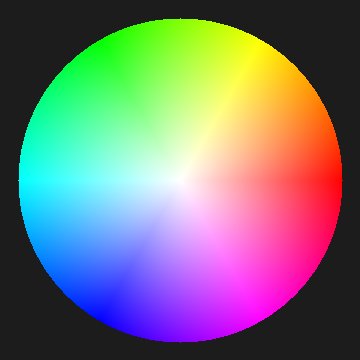
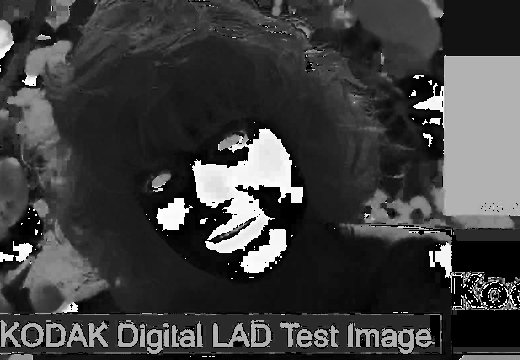


Three warnings. Hue is an angle: 359° and 1° are almost the same red, but as numbers they are far apart. Look at the skin in the H channel above: it jumps between black and white, because skin tones sit right around 0°. Never blur or average a hue channel. Saturation of a dark pixel is unstable: dividing by a small max amplifies noise. And HSV is built for 0…1 display values: on scene linear values above 1, S and V lose their meaning. Nuke's Colorspace node converts to and from HSV when you need the channels. I measured what it does with a linear input: it applies the sRGB curve first, then HSV, and stores the hue from 0 to 1. Linear (0.3, 0.2, 0.1) becomes H 0.096 (34.6°), S 0.40, V 0.584, and 0.584 is exactly 0.3 through the sRGB curve.
04. HSVTool
HSVTool converts every pixel to hue, saturation and brightness, and lets you change each one only inside a range, with a rolloff outside it: rotate the hues between 80° and 160° by 20°, lower the saturation of the brightest pixels, and so on. The ranges also produce a matte in the alpha, which is why Foundry calls it "an excellent keyer". The srccolor and dstcolor pickers set a colour replacement: pick the colour you have and the colour you want, and the node sets hue rotation and adjustments for you.
05. HueCorrect: curves over the hue
HueCorrect is a set of curves with the hue on the horizontal axis, from 0 to 6: 0 red, 1 yellow, 2 green, 3 cyan, 4 blue, 5 magenta, 6 red again (it's the hue angle divided by 60°). For every pixel the node computes the hue, reads each curve there and uses the value. I checked each curve in Nuke 17 by setting it flat and measuring the result:
- sat: saturation, the same lerp as the Saturation node with the Rec 709 grey (0 gives exactly 0.2125 r + 0.7154 g + 0.0721 b).
- lum: a plain gain on all three channels: 2 turns (0.3, 0.5, 0.2) into (0.6, 1.0, 0.4).
- red, green, blue: the gain of one channel.
- r_sup, g_sup, b_sup: suppression of one channel (next chapter), the exact formula below.
- sat_thrsh: fades the corrections out on low-saturation pixels, so greys and near-greys are protected. It's a soft fade, not a cut: with a threshold of 0.5, a red gain of 2 became 1.4 on a pixel of saturation 0.5 and 1.64 on one of saturation 0.83.
So "lower the green curve around 2" means "multiply the green channel of the green pixels".
06. Suppression and despill
The suppression curves are the classic despill maths. Measured in Nuke, g_sup does exactly this (and r_sup, b_sup the same for their channel):
if g > min(r, b): g = min(r, b) + g_sup × (g − min(r, b))
With g_sup = 0, green can never be higher than the smaller of red and blue: green spill disappears. With 1 nothing happens. The problem is that it also hits every colour that legitimately has more green than one of the other channels, yellows and skin included:


That's exactly why HueCorrect puts the suppression on a curve over the hue: you suppress only around the hue of the screen and leave the yellows alone. Other despill flavours use max(r, b) or the average of r and b instead of the min: the softer the limit, the more natural the skin, the more spill survives.
07. HueShift: rotating in XYZ
HueShift doesn't use HSV at all. As Foundry describes it, it converts the colours to CIE XYZ, where Y is brightness and X and Z hold the colour. Then everything is simple geometry: input graypoint moves the chosen grey to the centre of the XZ plane, saturation scales X and Z, color axis and saturation along axis stretch the colour in one direction only, hue rotation rotates the plane around Y, output graypoint moves the centre to a new grey (a tint), brightness multiplies.
Because every step is a scale or a rotation in a 3D colour space, the whole node is a 3x3 matrix, as the help of the Saturation example says. You can build the same kind of hue rotation with a ColorMatrix, rotating around the grey axis: the ColorMatrix Lab has a hue slider that does exactly that.
Colour Lab
Saturation with the four luminance maths, a hue rotation around the grey axis, green suppression with its limit. Hover the image to read H, S, V and the four greys of the pixel. Drag to compare.
Hover the image
Nodes to paste in Nuke
Click a box, copy it (Ctrl+C / Cmd+C) and paste it in Nuke's Node Graph (Ctrl+V / Cmd+V).
Despill with a choice of limit. Green suppression in an Expression: limit 0 = min(r, b), 1 = average, 2 = max(r, b), amount from 0 (full despill) to 1 (none).
Hue rotation around grey. Rotates the hues by an angle in degrees, keeping greys grey (the same maths as the ColorMatrix hue slider).
To HSV and back. Two Colorspace nodes: the first converts linear to HSV (through the sRGB curve, H from 0 to 1 in red, S in green, V in blue), the second converts back. Put your HSV maths in between.
The math series
The other pages about maths in Nuke:
Merge & Premultiplication
The Grade Node
ColorCorrect
Keying
Despill
Matching Colour & Light
Edge Extend
Lin, Log & Gamma
Filtering & Resampling
Edge Detection
Vectors
Trigonometry
Expressions & Curves
And if you like this, have a look at the Matrices in Nuke series.