Matrices in Nuke, the series: Convolution Matrix · Transform Matrix · ColorMatrix · Convolve & Deconvolution · 3D Matrices · Morphology · CornerPin & Homography · BlinkScript Matrices
A convolution matrix multiplies the pixels under the kernel and adds them up. Morphology uses the same sliding window, but instead of a weighted sum it takes the maximum, the minimum or the median. It sounds like a small change, and it's the maths behind every Erode, every edge matte and every despeckle you do on a matte.
Useful Links
- https://learn.foundry.com/nuke/content/reference_guide/filter_nodes/erode_fast.html
- https://learn.foundry.com/nuke/content/reference_guide/filter_nodes/erode_filter.html
- https://learn.foundry.com/nuke/content/reference_guide/filter_nodes/erode_blur.html
- https://learn.foundry.com/nuke/content/reference_guide/filter_nodes/median.html
- https://en.wikipedia.org/wiki/Mathematical_morphology
- https://en.wikipedia.org/wiki/Dilation_(morphology)
- https://en.wikipedia.org/wiki/Median_filter
- https://homepages.inf.ed.ac.uk/rbf/HIPR2/morops.htm
Index
- 01. Max and min instead of sum
- 02. The shape of the kernel
- 03. In Nuke: three Erodes and a Median
- 04. Open and close
- 05. Edge mattes
- 06. Median
- Morphology Lab (try it here)
- Nodes to paste in Nuke
01. Max and min instead of sum
Put a kernel on a pixel, look at all the pixels under it, and keep:
- the maximum: that's a dilate. A white pixel anywhere under the kernel wins, so white areas grow and small black holes disappear.
- the minimum: that's an erode. A black pixel anywhere under the kernel wins, so white areas shrink and small white specks disappear.
- the value in the middle of the sorted list: that's a median. Isolated pixels, too few to be in the middle, simply vanish.
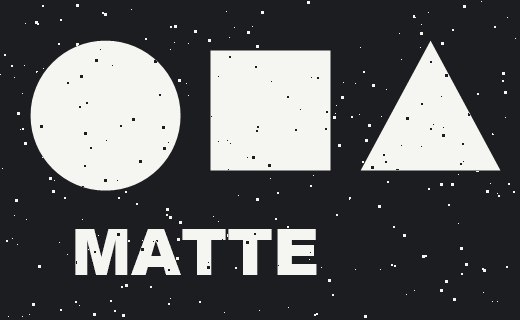

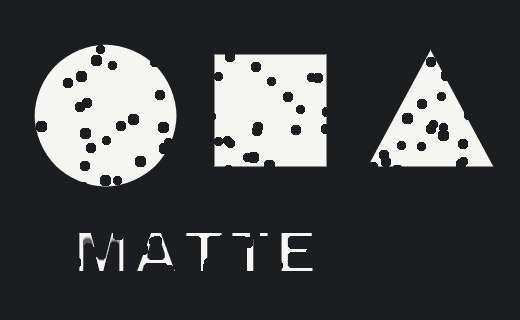
Unlike a convolution, these operations are not linear: there is no Fourier trick, no way to undo them, and dilate then erode does not give you back the original. That's exactly what makes them useful.
02. The shape of the kernel
In morphology the kernel is called structuring element, and its shape ends up printed on the corners of your matte. Here is a small square dilated by a big kernel of three shapes:



A square is the fastest (it can be done in two passes, rows then columns) but grows mattes in a boxy way. A disc keeps the look of the original shape. That's the difference you see between the Erode nodes of Nuke.
03. In Nuke: three Erodes and a Median
Nuke has three nodes called Erode, and careful: they don't agree on the sign of size, and two of them start with channels: none (if your Erode does nothing, that's why).
| menu name | class | size > 0 | channels | notes |
|---|---|---|---|---|
| Erode (fast) | Dilate | grows white | all | integer, square, the fastest |
| Erode (filter) | FilterErode | shrinks white | none | sub-pixel, filter box to gaussian |
| Erode (blur) | Erode | shrinks white | none | soft edges, extra blur and quality |
| Median | Median | bigger window | all | removes single pixel noise |
In short: Erode (fast) for quick matte growing on integer pixels, Erode (filter) when you need fractional sizes that animate smoothly, Erode (blur) when you want the edge soft at the same time. Erode (blur) treats every grey value as part of an edge, so solid areas that aren't 0 or 1 change value: use it on mattes, not on images.
04. Open and close
Two steps, same size, opposite directions. The magic is that the big shapes come back to their size, while the small details don't.
- Open = erode, then dilate: the specks are destroyed by the erode and there's nothing left to grow back. The shapes return to their size.
- Close = dilate, then erode: the holes are filled by the dilate and never reopen. Again the shapes return to their size.
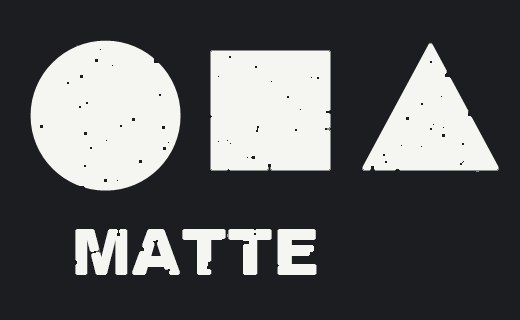
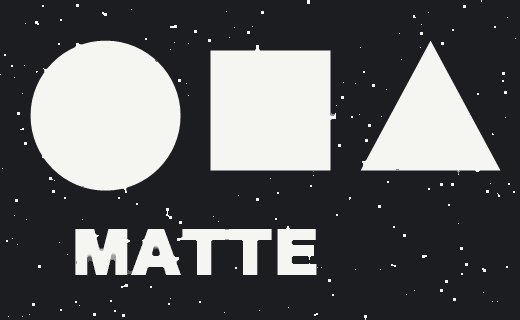
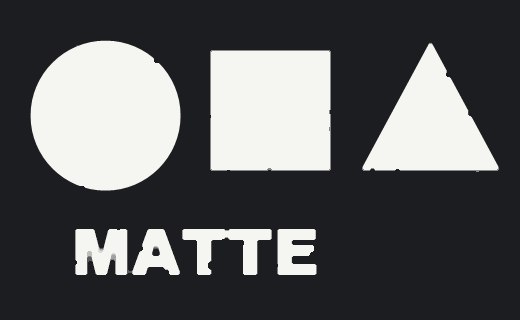
This is the classic clean-up of a key: two Erode (fast) nodes with size −2 and +2 remove the noise in the background, two with +2 and −2 fill the holes in the foreground. Too big and you start rounding the corners of the subject: keep the size just bigger than the dirt.
05. Edge mattes
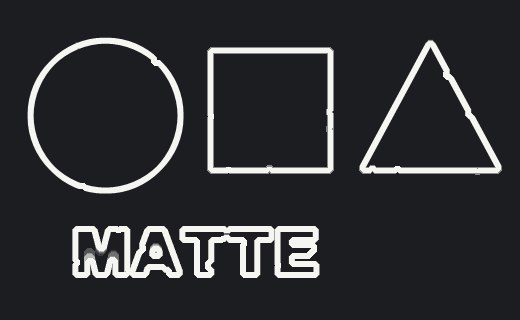
Subtract an erode from a dilate and only the border survives. Three variations, all useful:
- dilate − erode: a band centred on the edge (the morphological gradient).
- matte − erode: the inner edge, for edge blur, light wrap or a little despill on hair.
- dilate − matte: the outer edge, for edge extend or a soft halo.
06. Median
The median sorts the pixels under the kernel and keeps the one in the middle. A single bright pixel is never in the middle of the list, so it disappears, but a real edge is (half of the pixels are on each side), so it stays sharp. That's the big difference with a blur, which spreads the noise around and softens the edges.
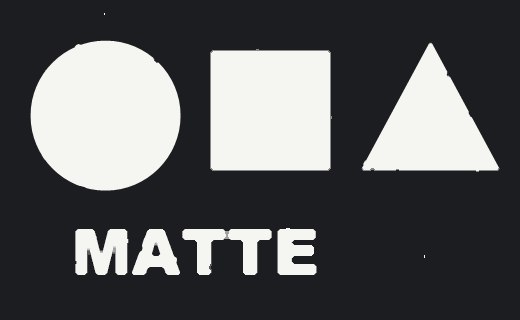
Use it for salt-and-pepper noise in keys, dead or hot pixels, fireflies in CG renders (on a copy, then keyed back only where needed) and to calm chroma noise. Big medians make images look painted: keep the size small.
Morphology Lab
Pick an operation, a shape and a size. Drag on the image to compare with the original.
The nodes use Erode (fast), which works on a square: in the Lab choose Square to match it exactly.
Nodes to paste in Nuke
Click a box, copy it (Ctrl+C / Cmd+C) and paste it in Nuke's Node Graph (Ctrl+V / Cmd+V). They work on the alpha.
Clean key (open + close). Four Erode (fast) nodes: the first two remove the specks outside, the last two fill the holes inside. Change all the sizes together.
Edge matte. Dilate and Erode (filter) on the alpha, and a Merge in difference: the band around the edge, ready for edge blur or light wrap.
Despeckle. A Median 3x3 on the alpha only.
Grow and soften. Erode (blur) with negative size to grow the matte, with a soft edge in one node.
The matrix series
If you are in love with Matrices :) have a look at the other pages:
Convolution Matrix
Transform Matrix
ColorMatrix
Convolve & Deconvolution
3D Matrices
CornerPin & Homography
BlinkScript Matrices